Guide 4 of 5 · Device audio
Choicer Voicer Microphone Setup
Prove the full audio loop before a game night: select the intended input, record a normal sentence, play back the saved take, and confirm the game receives speech without speaker feedback or clipping.
Updated
Quick Facts
- First diagnostic
- Official No Gameplay Demo
- Browser requirement
- Explicit microphone permission
- Recommended browser
- Current Chrome or Edge
- Feedback control
- Headphones or lower speakers
- Reliable test phrase
- Normal speaking voice, then one louder line
- Success condition
- Recorded file plays back clearly
Test outside the full game first
Create a Known-Good Microphone Baseline
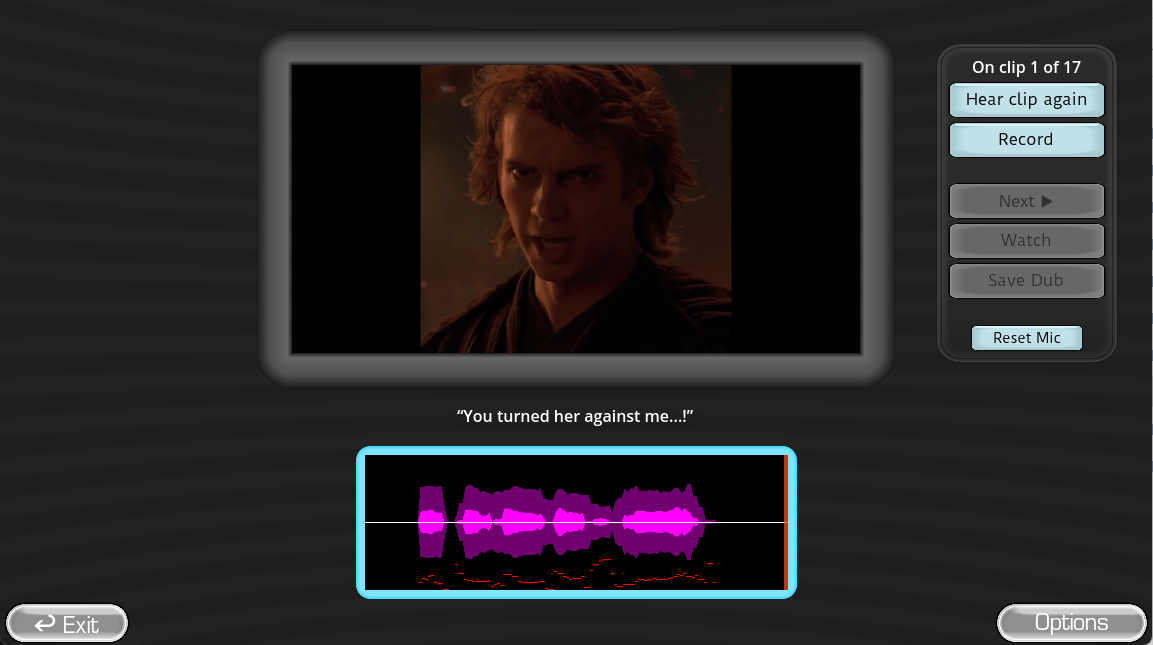
Use the free No Gameplay Demo on the official itch.io page before purchasing or troubleshooting custom Packs. Select the same microphone and output you will use in the full game. Record one sentence at normal volume and one short impression at performance volume.
Listen to the saved playback. Hearing yourself through live monitoring does not prove the game recorded the take. A visible meter also does not prove the selected output can play the result.
- Confirm the microphone works in the operating system recorder first.
- Close meeting, streaming, and audio-routing apps that may hold the input.
- Use a simple stereo output while diagnosing multi-channel playback.
- Keep the microphone close enough for a clear waveform but below clipping.
Follow one complete signal path
Set Up the Choicer Voicer Microphone
Select the physical input in system settings
Speak and confirm the operating system input meter responds to the intended device.
Allow application or browser access
Enable microphone permission for the desktop game or choicervoicer.io when prompted.
Choose the same device in the game
Do not leave an inactive webcam mic or virtual cable selected by accident.
Set a consistent speaking distance
Use a normal sentence and adjust until quiet speech is visible without loud speech flattening the meter.
Record and play back a saved take
Confirm the recording contains your voice and exits through the expected headphones or speakers.
Repeat after loading a Pack
Reference audio can reveal feedback or routing problems that a silent test cannot.
Match the symptom to the layer
Fix Silent, Distorted, or Missing Recordings
| Symptom | Likely layer | Focused check |
|---|---|---|
| No input meter | Permission or wrong device | Recheck system access and selected input |
| Meter moves but take is silent | Recording path | Use the official demo and a plain system recorder |
| Take exists but cannot be heard | Output routing | Select headphones or a two-channel stereo output |
| Voice is harsh or flattened | Input level too high | Lower gain and increase mouth distance slightly |
| Reference audio enters the take | Speaker feedback | Use headphones or lower and reposition speakers |
| Browser record button fails | Unsupported context or permission | Use HTTPS in a current browser and reset site permission |
Online game recordings stay local
Use the Browser Game Microphone Safely
The Play Game page requests microphone access only after you choose to record. The take stays in the current tab as an in-memory browser object and is not uploaded to Choicer Voicer. Closing or refreshing the tab removes that temporary take.
On mobile, browser audio behavior can change when a call, camera, or another tab uses the microphone. Close competing apps, reload the page, and grant permission again. For the most predictable session, use a desktop browser with a wired headset or known USB microphone.
Direct answers
Choicer Voicer Microphone Setup FAQ
Why can I see the mic meter but not hear my take?
The input is working, but the recording or output route may not be. Play the saved take through a known stereo output and test with the official demo.
Why does the game record the reference clip too?
Speaker audio is feeding back into the microphone. Use headphones, lower speakers, or move the microphone away from them.
Does the browser game upload my recording?
No. The homepage game keeps the take in memory in the current tab and does not submit it to the server.
What should I test before multiplayer?
Record and play back one normal sentence from every player position, then test one louder impression without clipping.
Reference trail
Sources and Further Reading
These sources support the platform, Pack, and workflow facts used in this original Choicer Voicer guide. Check the official store page for release details that may change after the update date above.
- Official game and mic demoNo Gameplay Demo and current microphone warning
- Play Choicer Voicer onlineFree complete playable online game with local recording